Create Your Infrastructure
Set up and manage cloud servers that provide the persistent runtime environment required to deploy your application to staging or production.
Create Your Infrastructure
After previewing your application, the next step is to create persistent infrastructure where your services will run for staging or production.
Preview environments are temporary and automatically shut down.
To deploy your application for real users, you must create Cloud Servers.
Cloud servers act as the runtime foundation for deployments.
Cloud Servers Overview
Cloud servers provide:
-
Compute resources (CPU, memory, storage)
-
Auto-scalable worker groups
-
Persistent runtime environments
-
Monitoring, metrics, and logs
-
Cost control via usage alerts
Each cloud server belongs to a workspace and can host multiple projects and services.
Cloud Servers → Instances
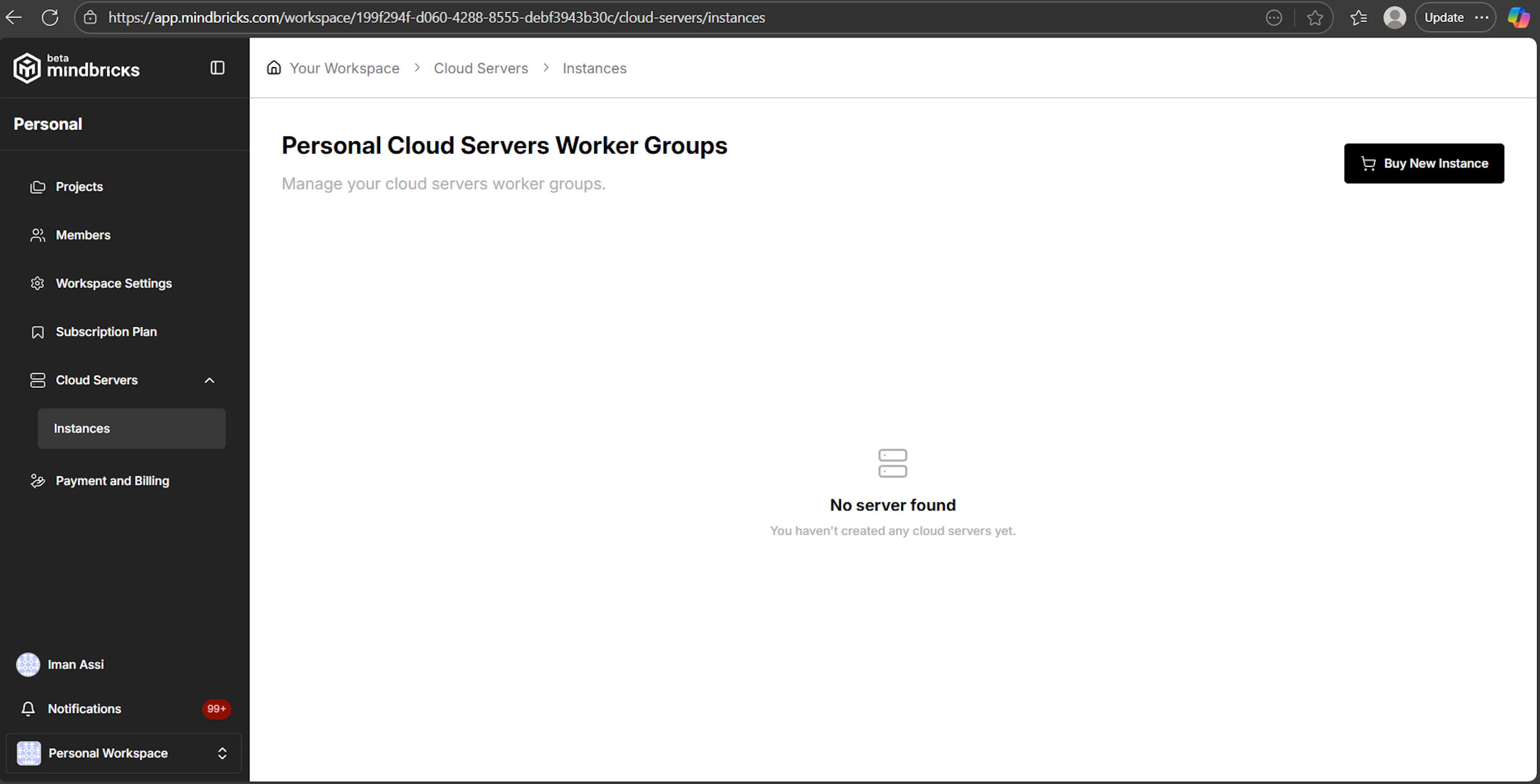
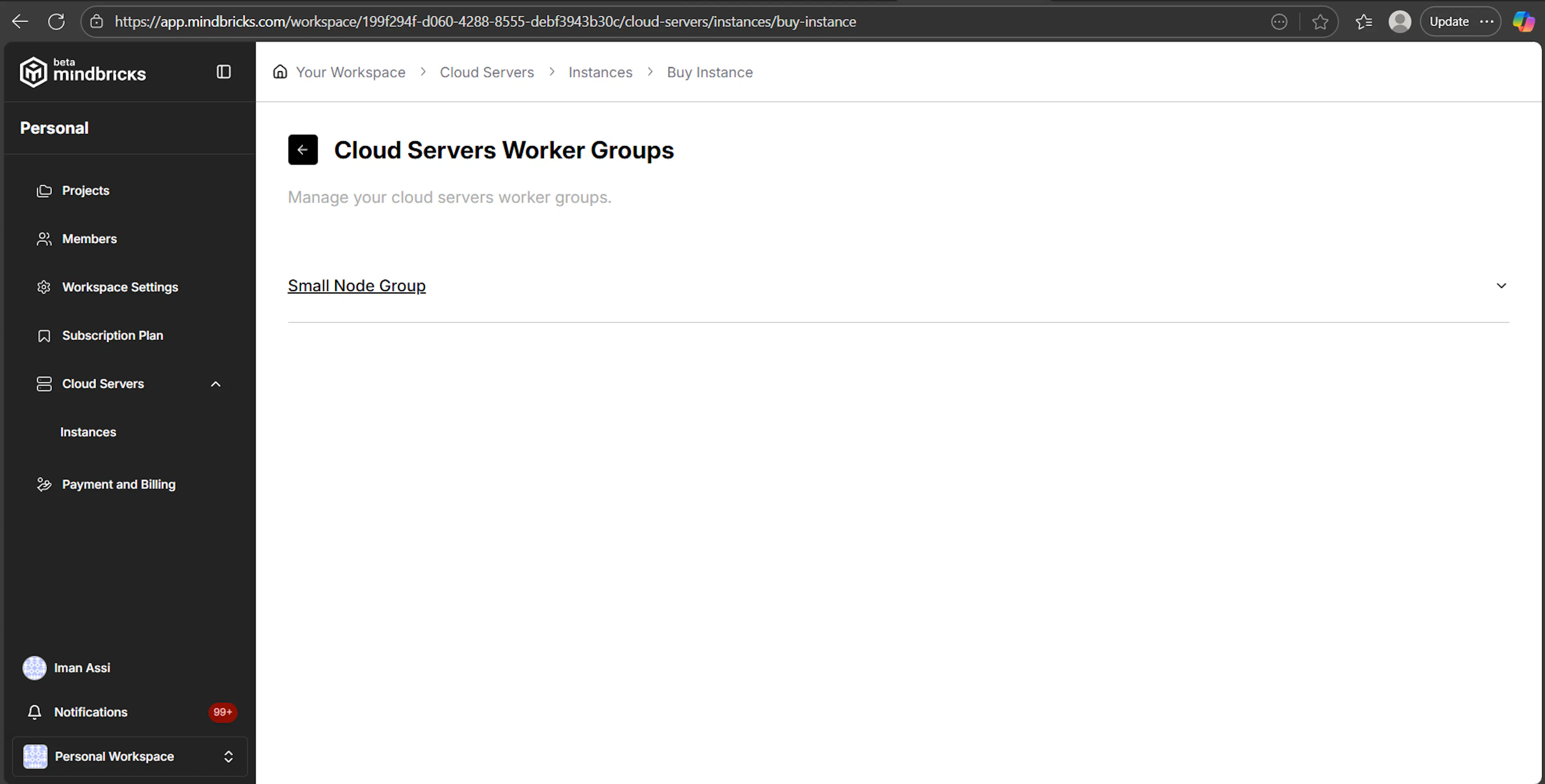
The Instances page shows available server worker groups that you can purchase and deploy.
Each worker group represents a predefined server configuration.
Cloud Servers → Buy Instance
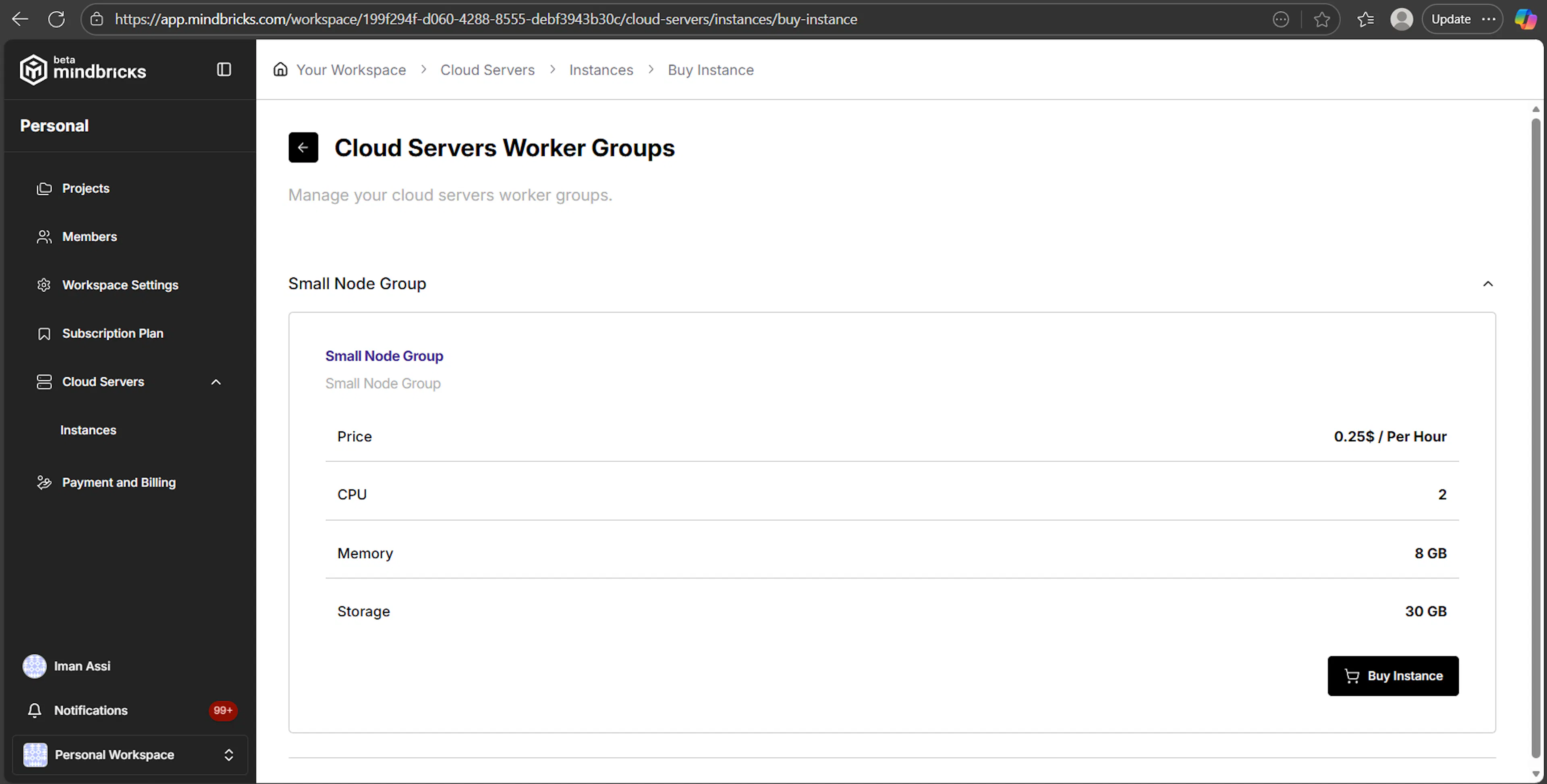
This page lists available worker group types with their specifications and pricing.
Worker Group Details
Each worker group displays:
-
Price (hourly billing)
-
CPU cores
-
Memory (RAM)
-
Storage
-
Buy Instance action
Example (Small Node Group):
-
Price: $0.25 / hour
-
CPU: 2 cores
-
Memory: 8 GB
-
Storage: 30 GB
Use this page to choose the server capacity that fits your workload.
Cloud Servers → Create Cloud Server
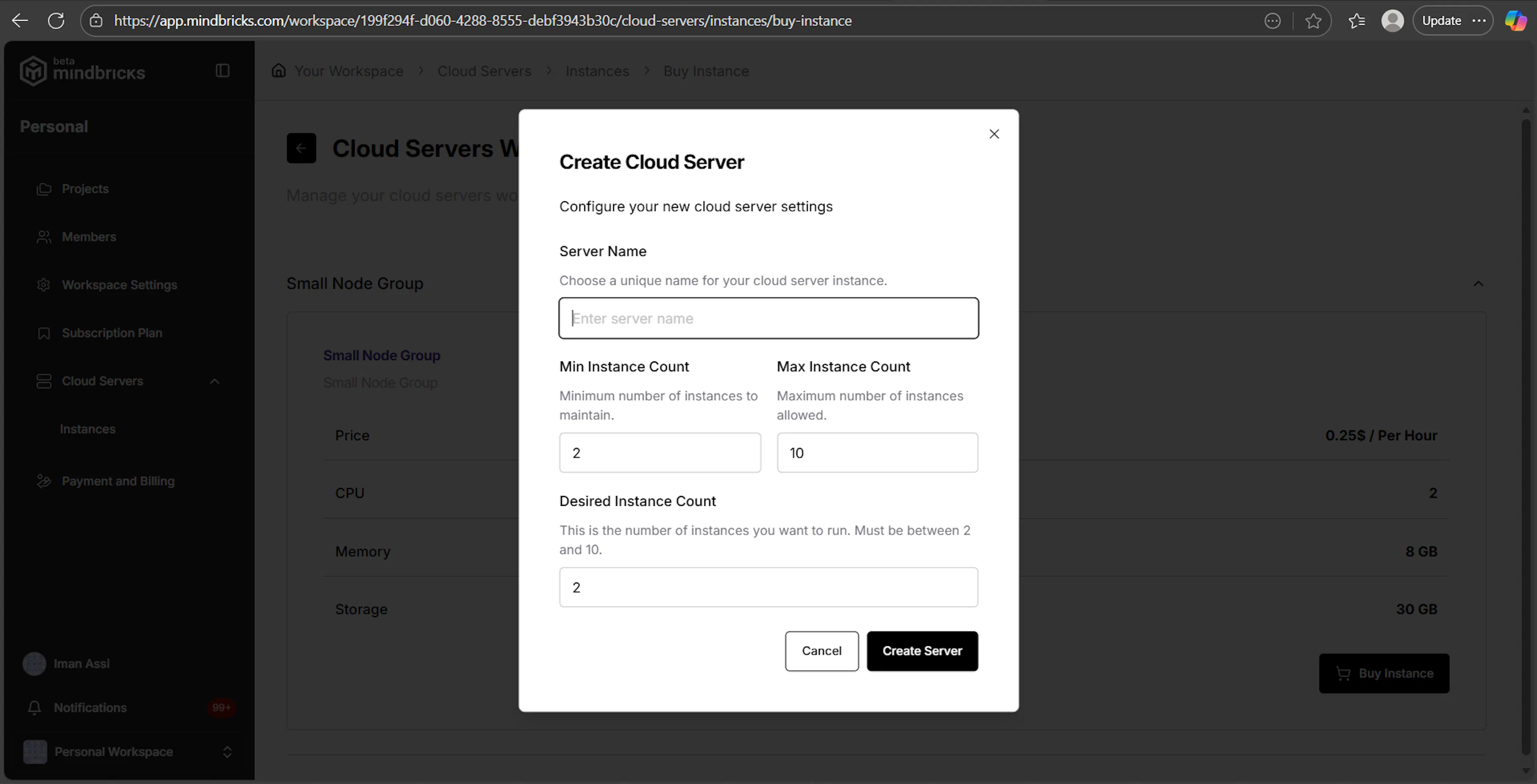
After clicking Buy Instance, a configuration modal opens where you define how the server will run.
Configuration Fields
Server Name
A unique name to identify this cloud server inside the workspace.
Min Instance Count
The minimum number of instances that must always be running.
Max Instance Count
The maximum number of instances allowed to scale up to.
Desired Instance Count
The initial number of instances to start.
Must be between the minimum and maximum values.
Example
-
Min Instances:
2 -
Max Instances:
10 -
Desired Instances:
2
This setup ensures baseline availability while allowing future scaling.
Cloud Servers → Payment & Setup
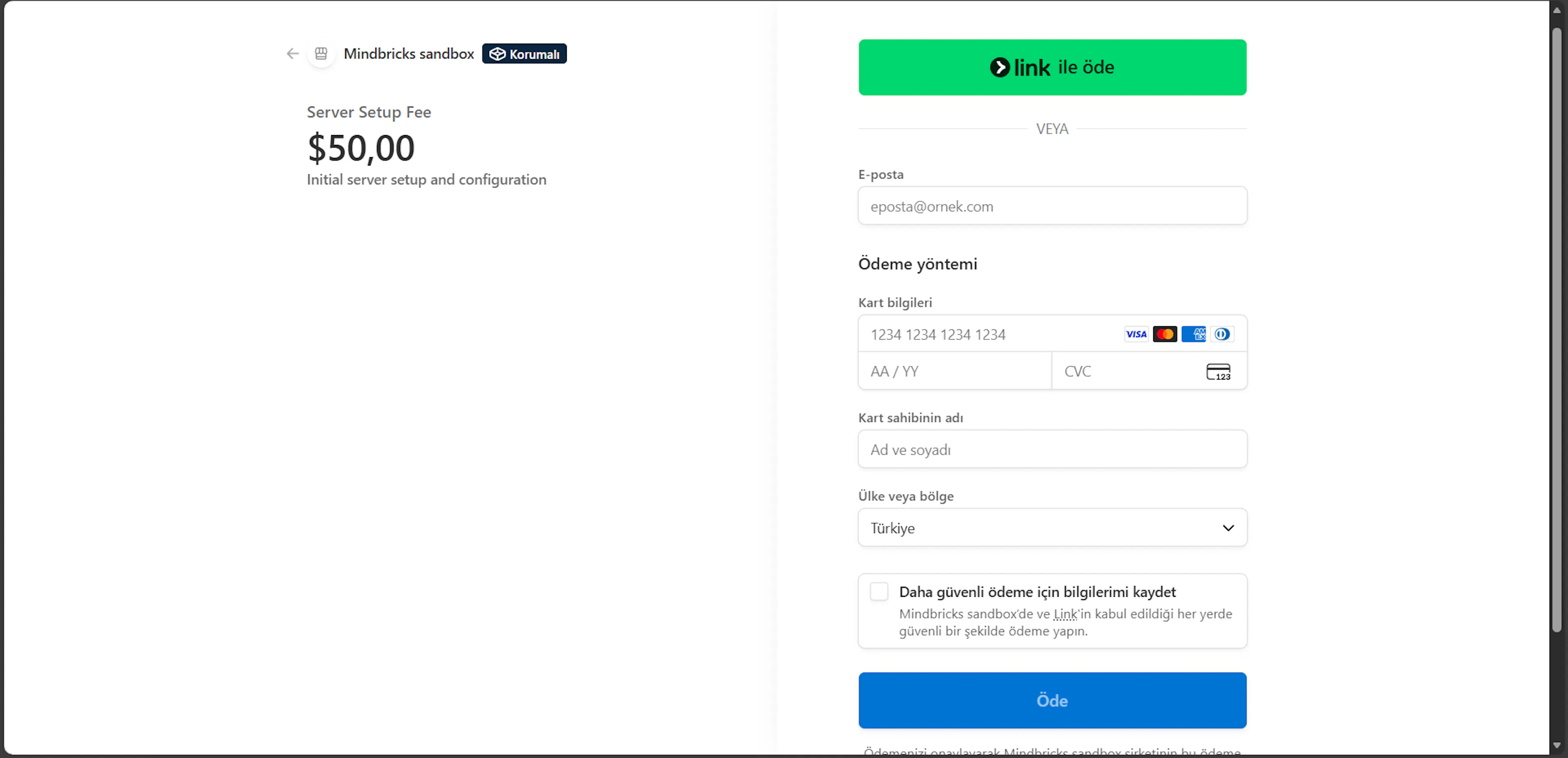
When creating a new cloud server for the first time, a one-time server setup fee is required.
Server Setup Fee
-
Covers initial server provisioning and configuration
-
Charged once per server
-
Shown clearly before payment confirmation
Payment Options
-
Secure card payment
-
Payment link (if supported)
After successful payment, the server creation process begins automatically.
Cloud Servers → Payment Successful
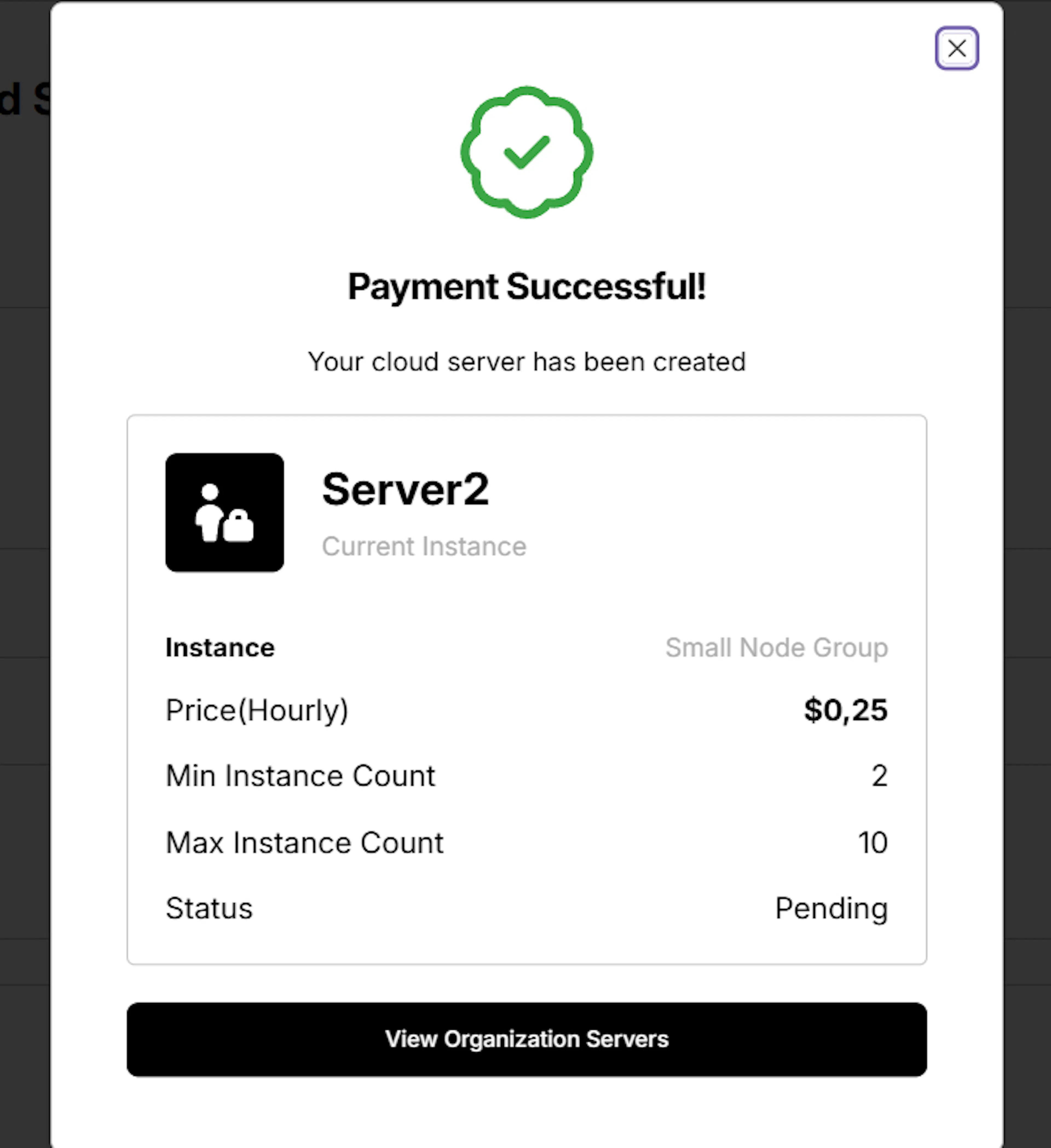
Once the payment is completed, a confirmation modal is shown.
What this means
-
Your cloud server has been successfully created
-
The server enters an initial Pending state
-
Provisioning and setup start in the background
The confirmation view displays:
-
Server name
-
Instance type (worker group)
-
Hourly price
-
Min / Max instance counts
-
Current status
Cloud Servers → Instance Details
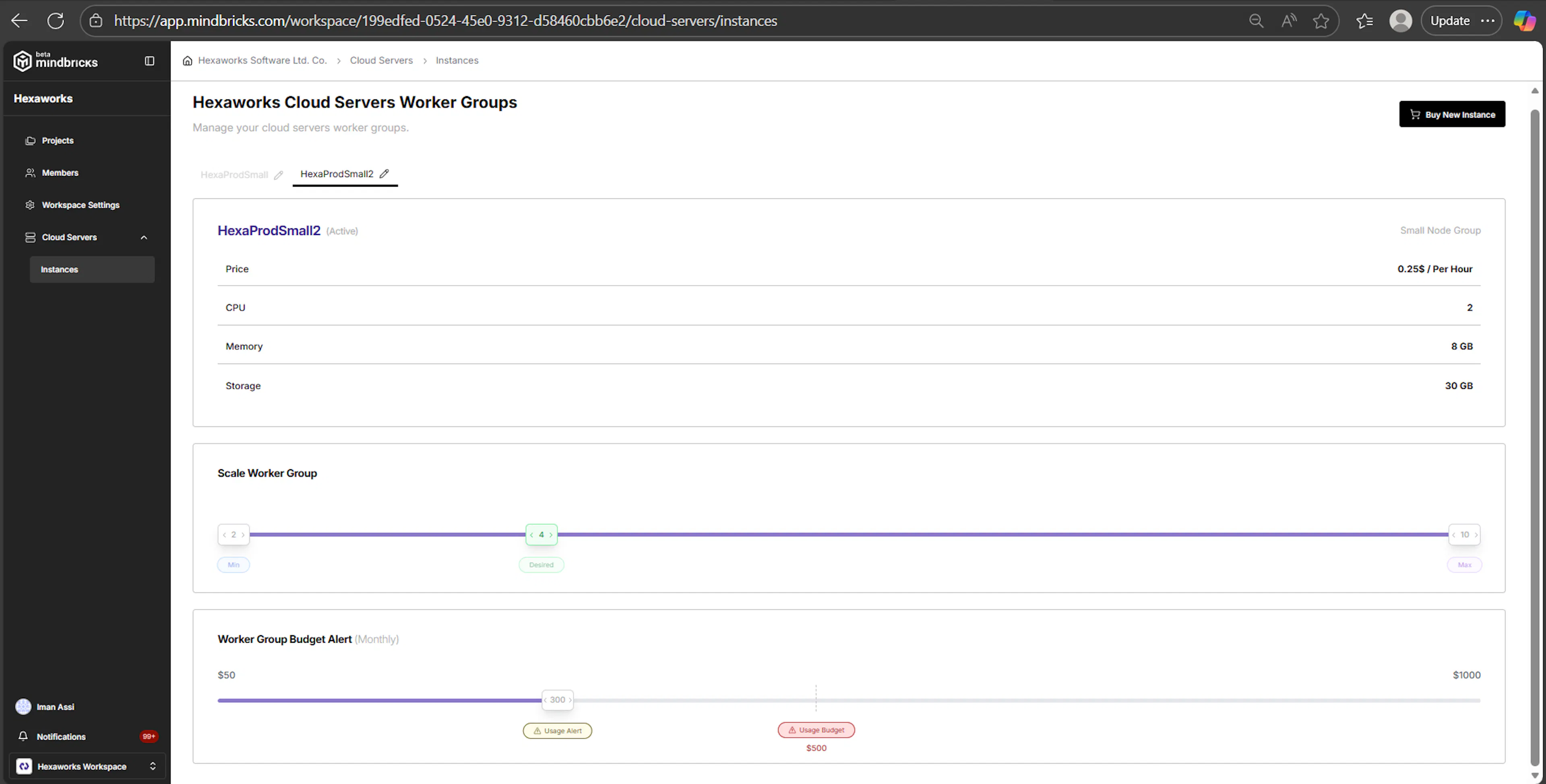
After creation, each cloud server has its own instance detail page.
This page allows you to monitor, scale, and manage the server.
Instance Information
-
Server name and status (Pending / Active)
-
Worker group type
-
Hourly price
-
CPU
-
Memory
-
Storage
Scaling the Worker Group
The Scale Worker Group section allows you to control how many instances are running.
Controls
-
Min – minimum number of instances that must always stay active
-
Desired – currently running instance count
-
Max – maximum number of instances allowed
You can adjust scaling using the slider within the allowed range.
Changes take effect dynamically and respect the configured limits.
Budget & Usage Alerts
The Worker Group Budget Alert section helps you control monthly costs.
You can configure
-
Monthly usage alert thresholds
-
Budget limit warnings
-
Visual indicators as usage approaches limits
These alerts help prevent unexpected costs.
Instance Metrics & Monitoring
Each cloud server provides real-time metrics for performance and usage monitoring.
Available metrics include:
-
CPU usage (%)
-
Memory usage (%)
-
Network in / out
-
Instance-level activity
These metrics help you understand load, performance, and scaling needs.
Deployed Projects & Services
If any projects are deployed to this cloud server, the instance view also shows:
-
Which projects are running on the server
-
Which services are deployed per project
-
Runtime status of deployed services
This provides clear visibility into what is running where.
Instance Actions
From the instance detail page, you can:
-
Scale instance count
-
Monitor usage and metrics
-
View deployed projects and services
-
Terminate the instance when no longer needed
⚠️ Terminating an instance will stop all workloads running on that server.
Infrastructure and Deployment Connection
Cloud servers are used directly during deployment:
-
You choose a deployment environment (Stage or Production)
-
You select an existing cloud server
-
Services are deployed onto that server
-
Traffic is routed to the deployed services
Without an active cloud server, deployment cannot proceed.